Free text-to-speech · by Ajay Alle

Select text.
Hear it.

Uttr reads text out loud, anywhere. Highlight words in Word, a PDF, an email or any website, and Uttr speaks them in a natural voice, at the speed you like.

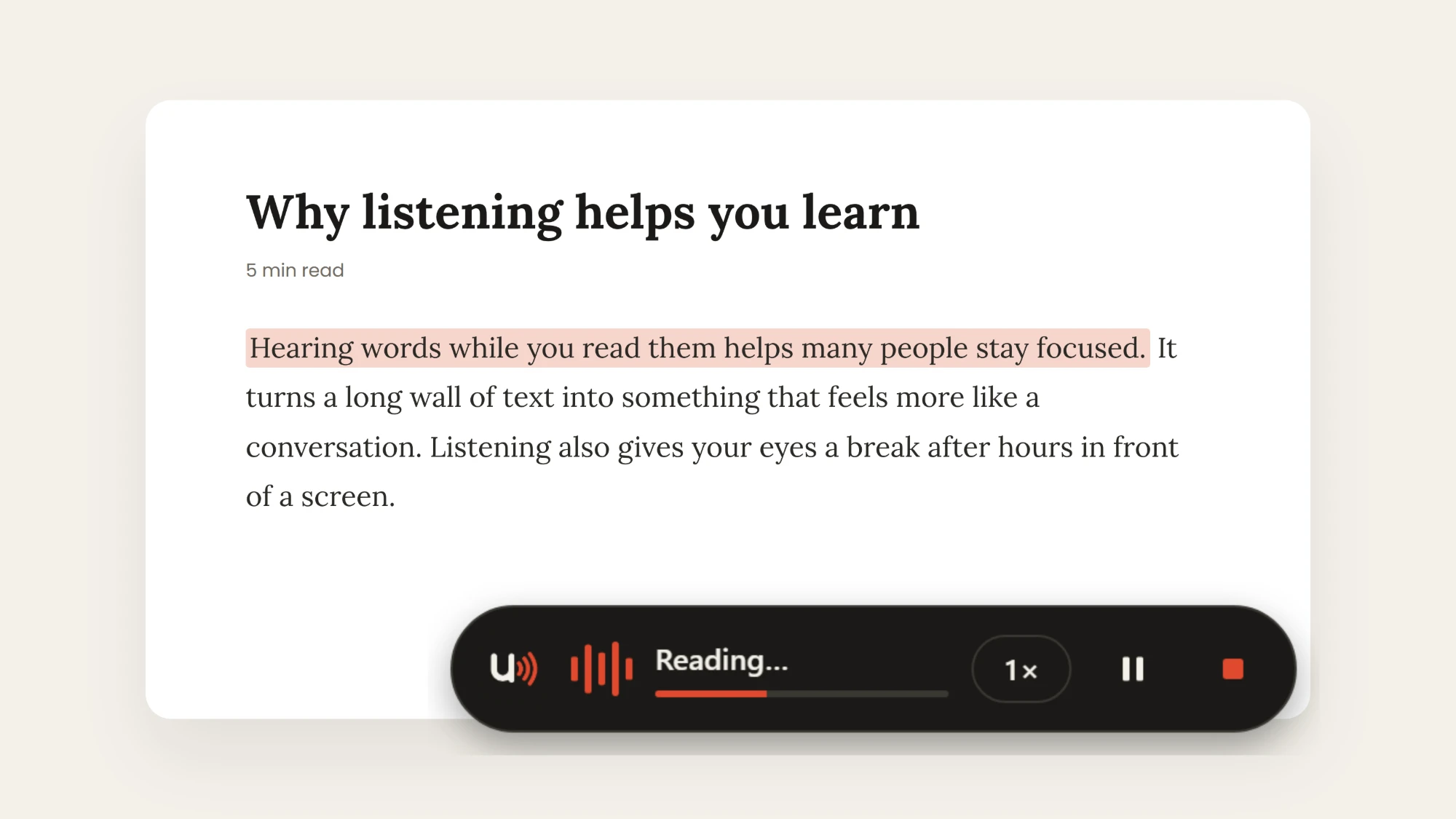
An article titled 'Why listening helps you learn' with one sentence highlighted, and the Uttr bar below it reading it aloud
0 personal data collected

How it works

Three steps. That's it.

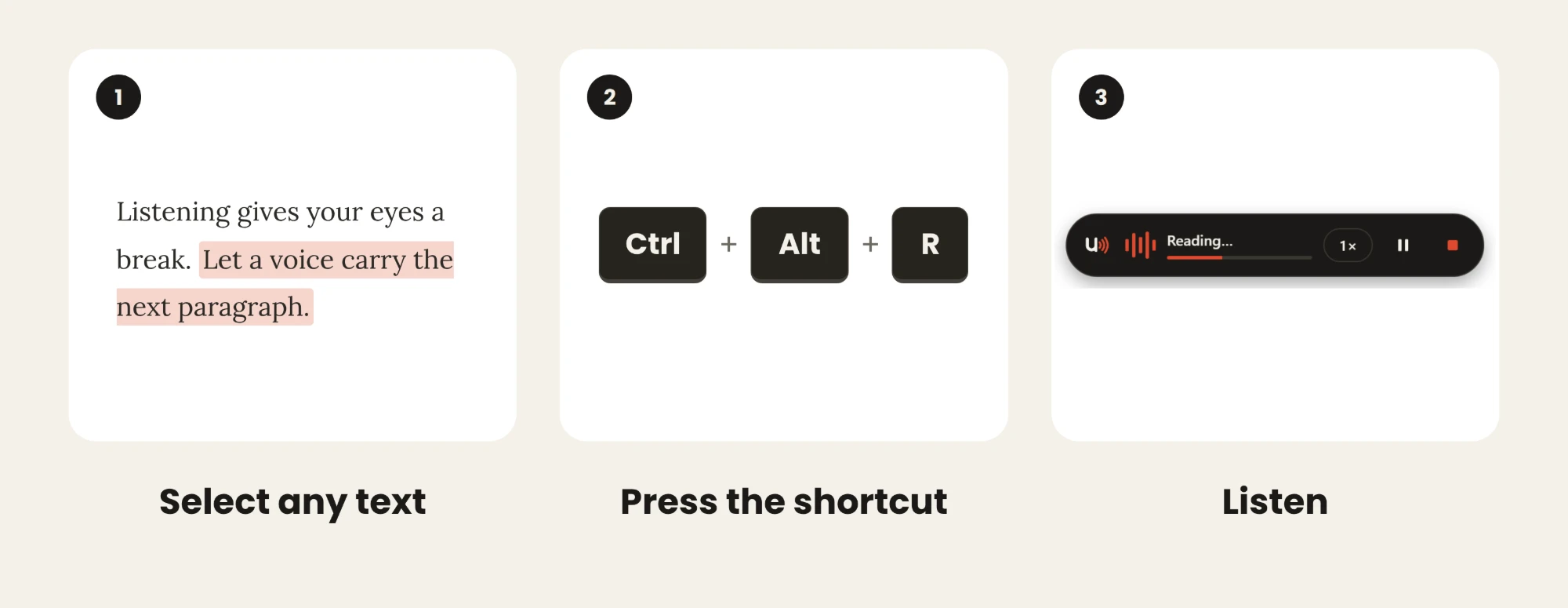
Step 1: select any text. Step 2: press the shortcut Ctrl + Alt + R. Step 3: listen, as the Uttr bar reads it aloud.

Using the browser extension? Skip step 2. It starts reading as soon as you select.

Two ways to use Uttr

One idea. Everywhere you read.

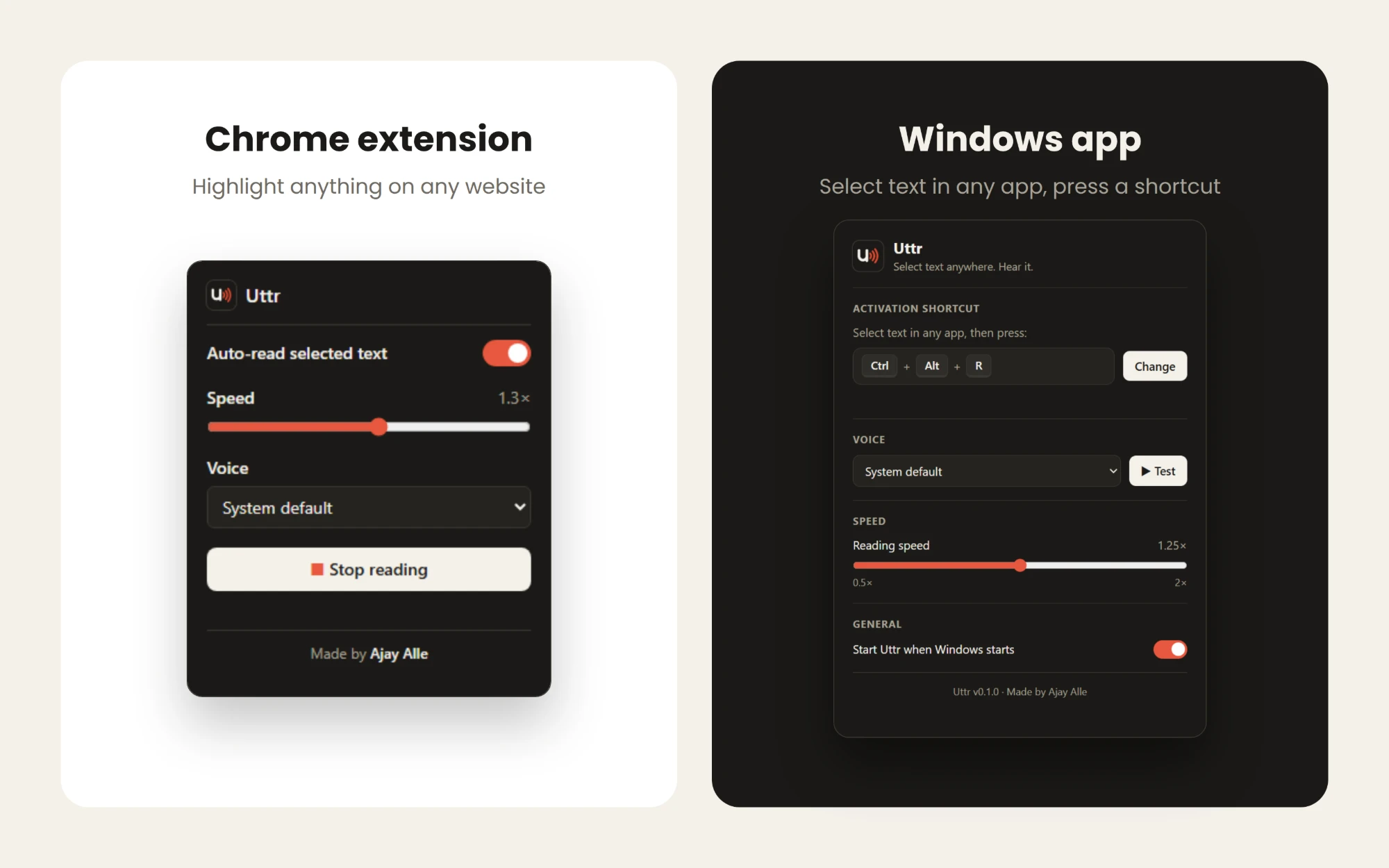
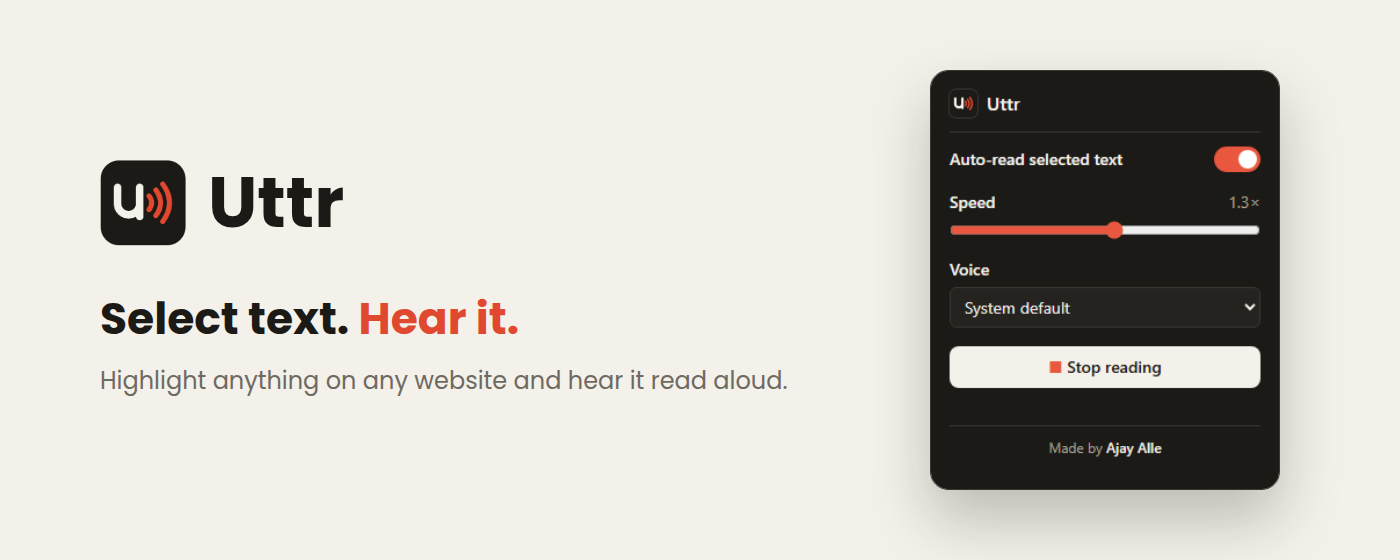
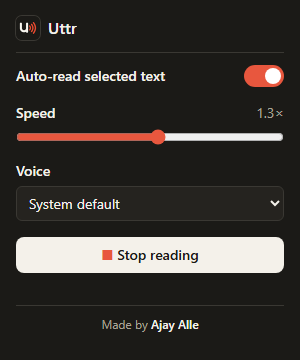
Side by side: the Uttr Chrome extension popup (highlight anything on any website) and the Uttr Windows app settings (select text in any app, press a shortcut)

Uttr for Windows

Works in every app on your PC

Select text in Word, a PDF, Outlook, Slack, Chrome or anything else, press Ctrl+Alt+R, and a small bar appears at the bottom of your screen and reads it to you.

  • One keyboard shortcut, and you choose it
  • Floating bar with pause, speed and stop
  • Updates itself automatically
Download for Windows

Uttr Chrome Extension

Reads any website the moment you select

No shortcut needed: highlight a sentence on any web page and Uttr starts reading straight away. Perfect for articles, blogs, news and study material.

  • Auto-reads as soon as you select
  • Voice, speed and on/off in one click
  • Chrome, Edge, Brave and Opera
Download the extension
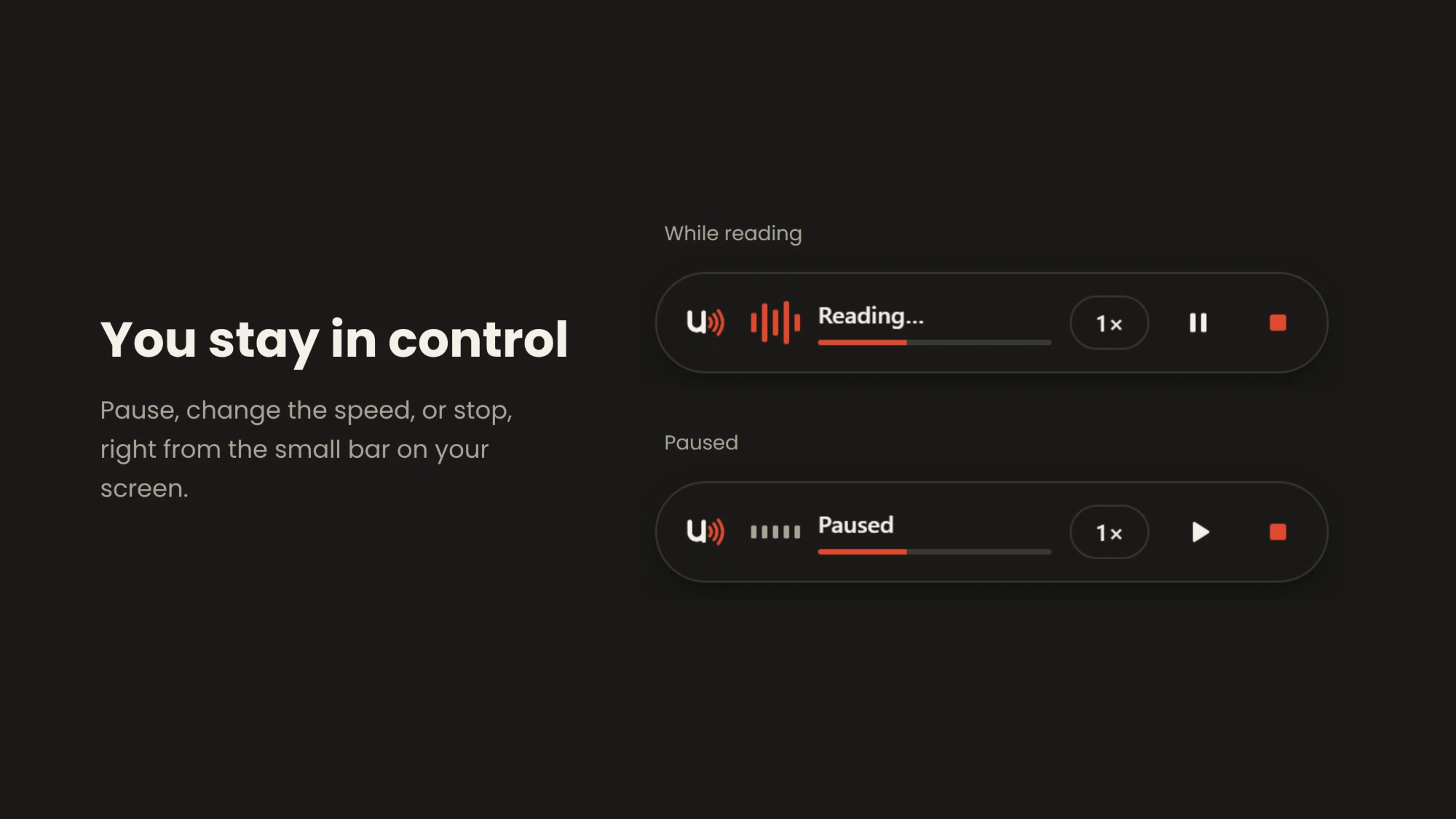
You stay in control: pause, change the speed, or stop, right from the small bar on your screen. The bar is shown while reading and while paused.

Your speed, your way

Slow down to learn.
Speed up to skim.

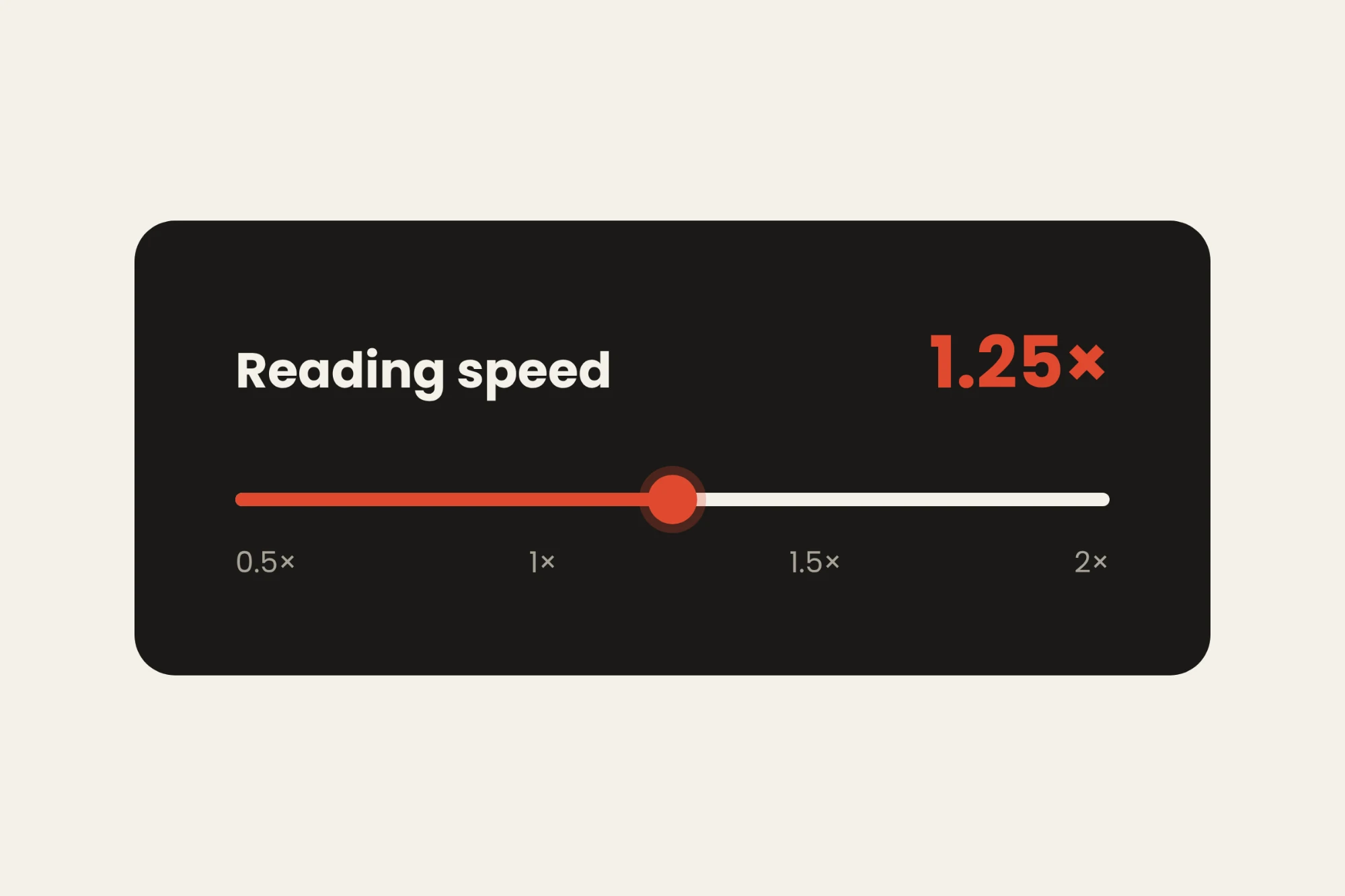
Pick any speed from 0.5× to 2× in Settings, or tap the speed button on the bar while Uttr is reading. It changes straight away, carries on from the same word, and Uttr remembers it for next time.

Reading speed slider set to 1.25×, on a scale from 0.5× to 2×

Features

Everything you need. Nothing you don't.

Works in any app

Word, Excel, PDFs, Outlook, Gmail, Slack, Teams, WhatsApp, Notion, and every website.

Floating reading bar

A small bar shows what's happening, and it never steals focus from your work.

Pause from the same word

Pause and resume, and Uttr carries on from the exact word it stopped at.

Your speed

Anywhere from 0.5× to 2×. Slow down to learn, or speed up to skim.

Choose your voice

Use any voice installed on your computer, male or female, in many languages.

Your own shortcut

Don't like Ctrl + Alt + R? Record any key combination in Settings. It works instantly.

Private by design

No account, no tracking, no ads. Speech is made on your own device.

Handles long text

Whole articles and reports are split into natural sentences and read smoothly to the end.

Updates itself

The Windows app quietly installs new versions, so you always have the latest.

Where you can use it

If you can select it, Uttr can read it.

📚 Studying

Listen to notes, textbooks, PDFs and research papers. Hearing and reading together helps things stick.

💼 Work

Let long emails, reports and documents read themselves while you rest your eyes or take notes.

✍️ Proofreading

Hear your own writing out loud. Awkward sentences and missing words jump right out.

🌍 Learning a language

Hear how words and sentences are really pronounced, at a slower speed if you like.

♿ Accessibility

Helpful for dyslexia, low vision, ADHD, and anyone who finds listening easier than reading.

📰 Reading the web

News, blogs, Wikipedia, recipes and long articles, read aloud as soon as you highlight them.

Works with apps like

  • Microsoft Word
  • PDF readers
  • Outlook
  • Gmail
  • Chrome
  • Edge
  • Slack
  • Microsoft Teams
  • WhatsApp Desktop
  • Notion
  • Google Docs
  • Excel
  • PowerPoint
  • Notepad
  • Wikipedia
  • News sites

How to use

Up and running in 2 minutes

Install

  1. Download Uttr-Setup.exe.
  2. Double-click it. Uttr installs in a few seconds. No admin password is needed.
  3. If Windows shows "Windows protected your PC", click More info, then Run anyway. This blue screen appears for new apps that aren't signed with a paid certificate. Uttr's full source code is public on GitHub.
  4. Done! You'll see "Uttr is ready" at the bottom of your screen, and the Uttr logo near the clock (it may be under the ^ arrow).

Use

  1. Select some text in any app.
  2. Press Ctrl + Alt + R. The Uttr bar slides up and reads it aloud.
  3. Control it from the bar: pause, change speed or stop. Or just press Esc.
Uttr bar while reading: logo, sound wave, progress line, speed, pause and stop buttons Uttr bar while paused
The bar while reading (top) and paused (bottom)

Controls

I want to…Do this
Read textSelect it, press Ctrl+Alt+R
Read something elseSelect the new text, press the shortcut again
StopEsc, the shortcut again, or ■ on the bar
Pause / resume⏸ / ▶ on the bar, which resumes from the same word
Faster / slowerClick the 1× button on the bar
Change shortcut, voice, speedClick the Uttr icon near the clock to open Settings
Start with WindowsTurn it on in Settings → General
Check for updatesRight-click the Uttr icon → Check for updates
UninstallWindows Settings → Apps → Installed apps → Uttr → Uninstall
Uttr browser extension: select text, hear it. Highlight anything on any website and hear it read aloud.

Install

  1. Download uttr.zip and unzip it (right-click → Extract All on Windows, double-click on Mac).
  2. Move the uttr folder somewhere permanent, like Documents. Don't delete it later, because your browser loads Uttr from it.
  3. Open your extensions page: type chrome://extensions (or edge://extensions) in the address bar.
  4. Turn on "Developer mode": top-right in Chrome, left sidebar in Edge.
  5. Click "Load unpacked" and choose the uttr folder.
  6. Pin it: click the 🧩 puzzle icon, then the 📌 pin next to Uttr.

Uttr isn't in the Chrome Web Store yet, which is why it's installed this way. One-click store versions are coming.

Use

  1. Open any website, and refresh tabs that were already open.
  2. Select some text with your mouse. Uttr reads it straight away. No shortcut needed.
  3. Select something else to switch, or press Esc to stop.
Uttr extension popup: auto-read toggle, speed slider, voice picker and stop button
Click the Uttr icon in your toolbar for its settings

Controls

I want to…Do this
Read textSelect it with your mouse
StopEsc, or the Uttr icon → Stop reading
Pause auto-readingUttr icon → switch Auto-read off
Faster / slowerUttr icon → Speed slider (0.5× to 2×)
Change voiceUttr icon → Voice
Re-read the same textClick away to deselect, then select it again

FAQ

Questions, answered

Is Uttr free?

Yes. Both the Windows app and the browser extension are completely free, with no ads.

Is my text sent anywhere?

No. Uttr uses the voices built into your computer and browser, so your text stays on your device. There's no account, tracking or analytics. The Windows app only connects to GitHub to check for updates. (Some browser voices marked "Google" or "Online" are provided by your browser over the internet. Pick a different voice to keep everything offline.)

Why does Windows show "Windows protected your PC"?

Windows shows that screen for any new app that isn't signed with a paid code-signing certificate. Click More info → Run anyway. Uttr's complete source code is public on GitHub for anyone to check.

How does the Windows app read text from other apps?

When you press the shortcut, Uttr briefly copies your selection (like pressing Ctrl+C), reads it, and then puts your clipboard back exactly as it was. Nothing is stored.

Can I change the shortcut from Ctrl + Alt + R?

Yes. Click the Uttr icon near the clock, then Change under Activation shortcut, and press any combination that includes Ctrl, Alt or the Windows key. If another app already uses it, Uttr will tell you.

How do I get more or better voices?

On Windows, go to Settings → Time & language → Speech → Add voices. New voices then appear in Uttr's voice list.

It doesn't read in one particular app. Why?

A few places don't allow copying, such as password fields, some protected documents, and apps running "as administrator". Everything else should work.

Is there a Mac, iPhone or Android version?

Not yet. The browser extension works on Mac in Chrome, Edge and Brave today. A Mac app and an Android version are on the roadmap.

What about Firefox and Safari?

A Firefox version is ready and on its way to Firefox Add-ons. Safari isn't supported yet.

How do I uninstall?

Windows app: Settings → Apps → Installed apps → Uttr → Uninstall. Extension: open chrome://extensions, click Remove on Uttr, then delete the uttr folder.
Ready to give your eyes a break?

Free. Private. Takes two minutes.